
Import and Export Data
Share workspaces with one-time data import and export
For team collaboration, it is recommended to use Directory / Git Sync
Import Data
Yaak supports importing data from a number of formats:
- OpenAPI 3.0, 3.1
- Postman Collection v2, v2.1
- Insomnia v4+
- Swagger 2.0
- Curl commands (new-line separated)
Data can be imported via the main settings menu.
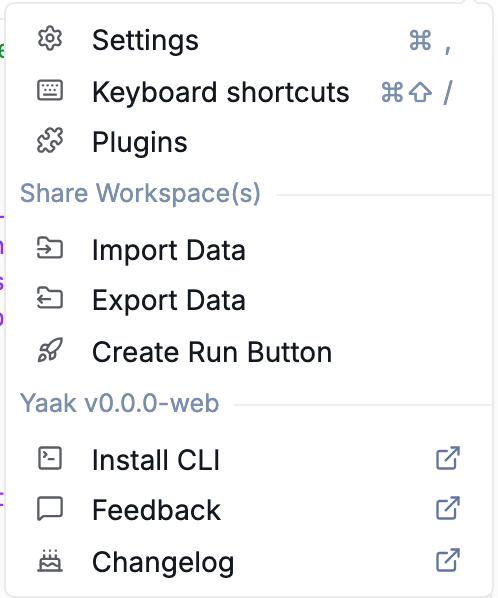
Open Import Data from the main menu
Select a file or enter a URL, choose a new or existing workspace as the destination, then click Preview Import to review the changes.
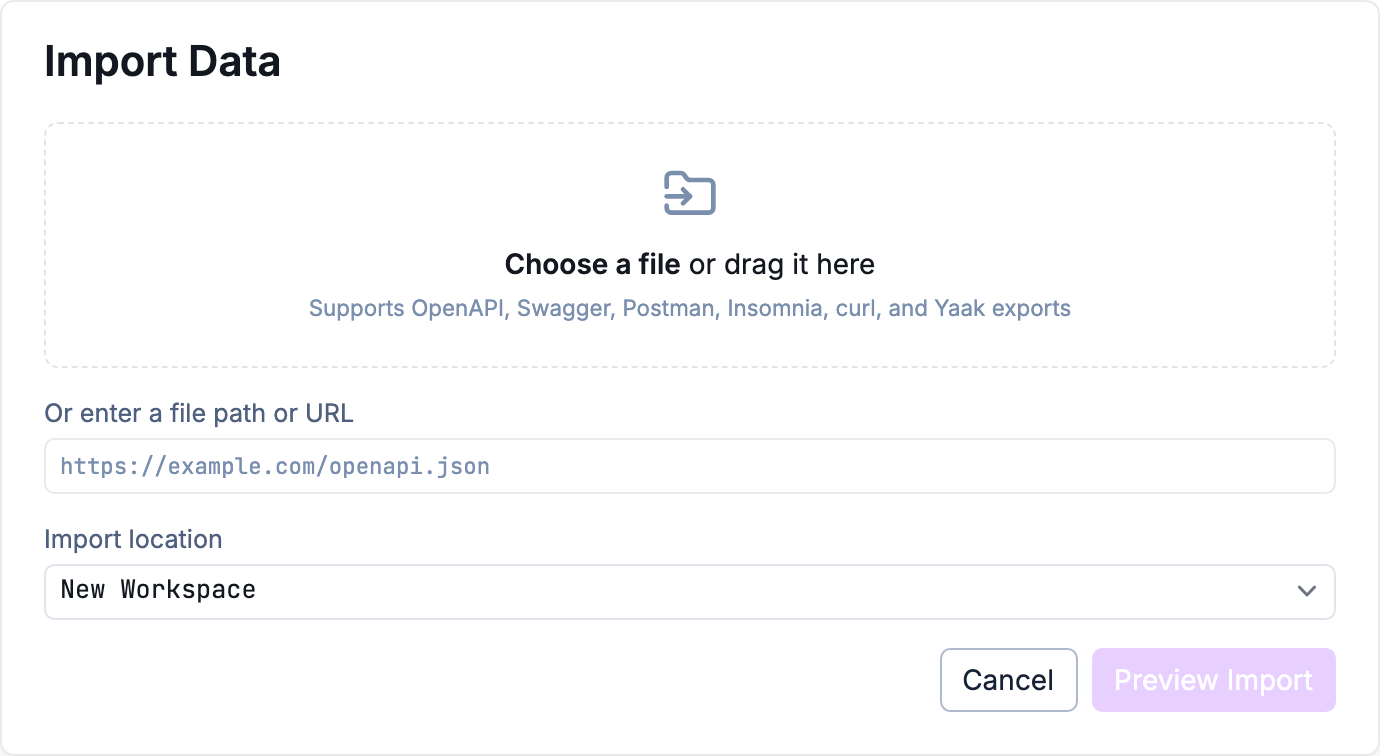
Choose an import source and destination
Import cURL from Clipboard
It is also possible to quickly import cURL commands by pasting into the URL bar. Yaak will also present a helpful import button when it detects there is something to import from your clipboard.
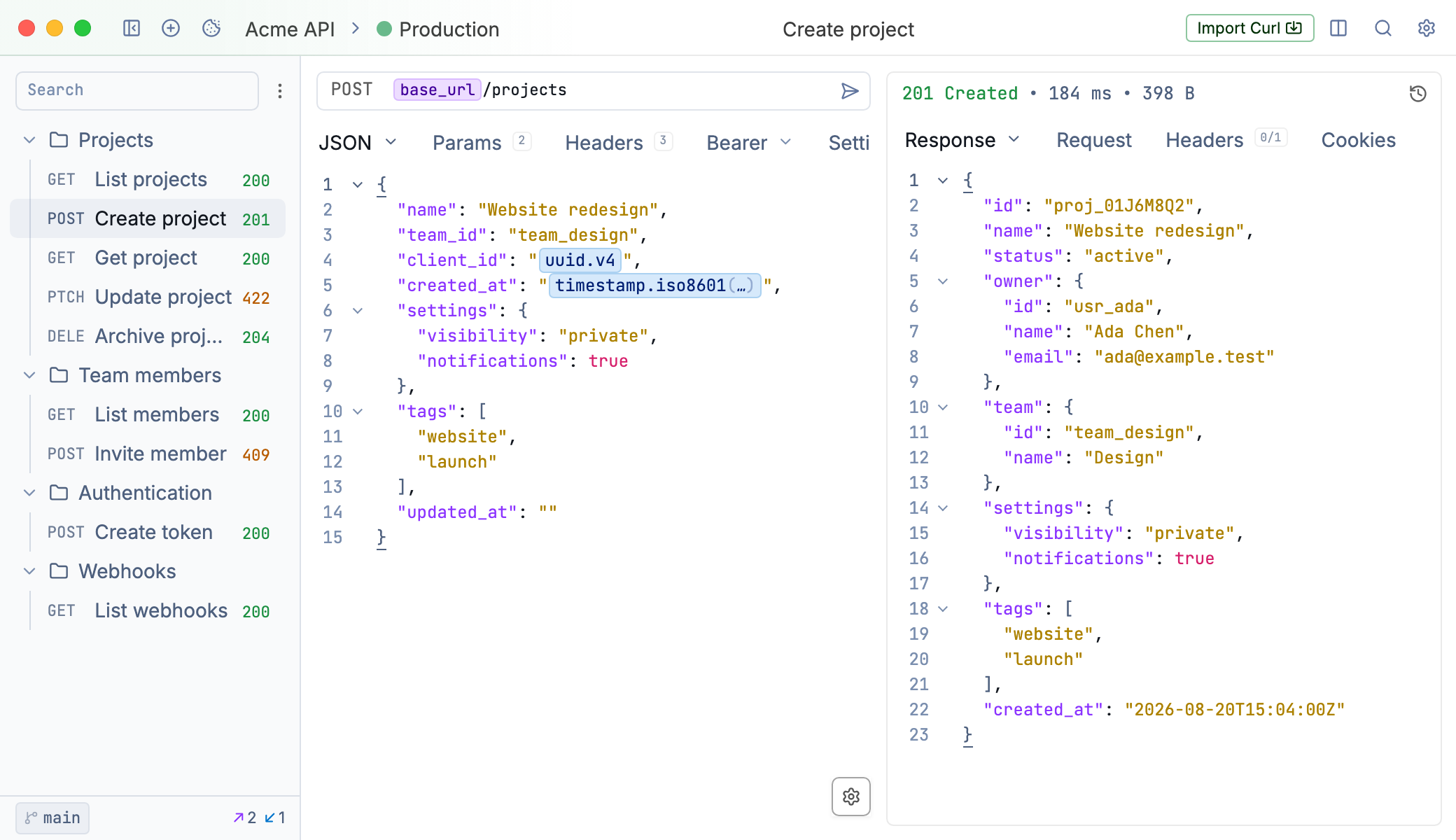
Import a Curl command detected on the clipboard
Export Data
Yaak allows exporting workspaces into a single JSON file, which can be backed up or shared. You can access the export feature from the global settings menu.
Open Export Data from the main menu
Select the workspaces you want to be included in the export, then you’ll be prompted to select a folder on your filesystem to save it.
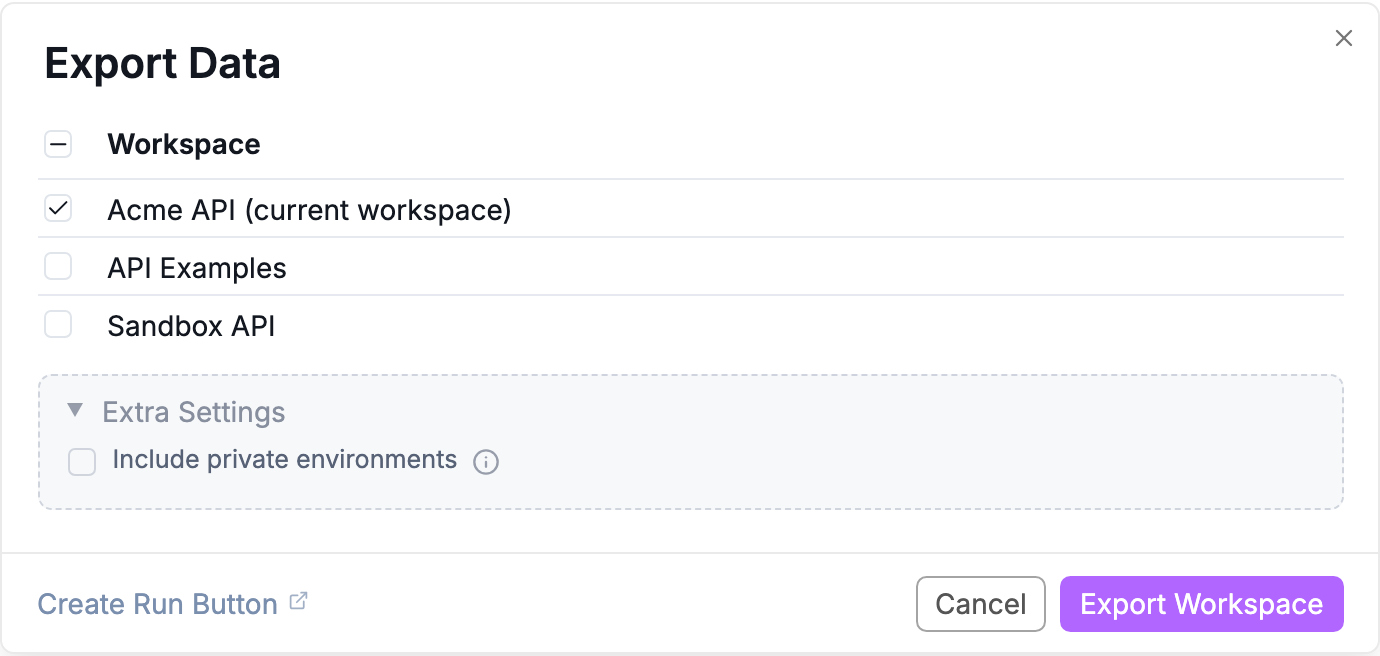
Choose the workspaces to include in the export
Copy as Curl
Quickly copy the current request as a cURL command from the right-click context menu of any HTTP request in the sidebar.
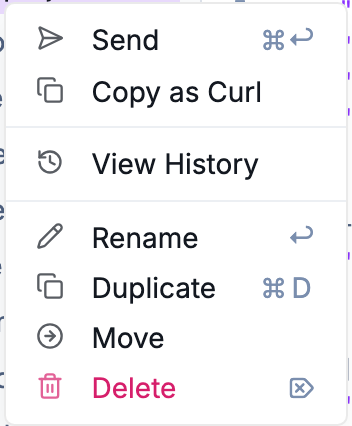
Copy a request as a Curl command
Was this helpful?