
Migrate from Postman
Export Postman collections and environments, import them into Yaak, and prepare your workspace for a team
Yaak is a fast, offline API client. Keep your requests on your computer, reuse response values without scripts, and share your work through Git. No account required.
You can bring your Postman collections and environments with you. Start with one collection, then follow the team setup below when you’re ready to bring everyone over.
Export from Postman
Start in Postman. You’ll need to export your collections and environments separately.
1. Open the collection menu
Open Collections, click … beside a collection, then choose More → Export collection.
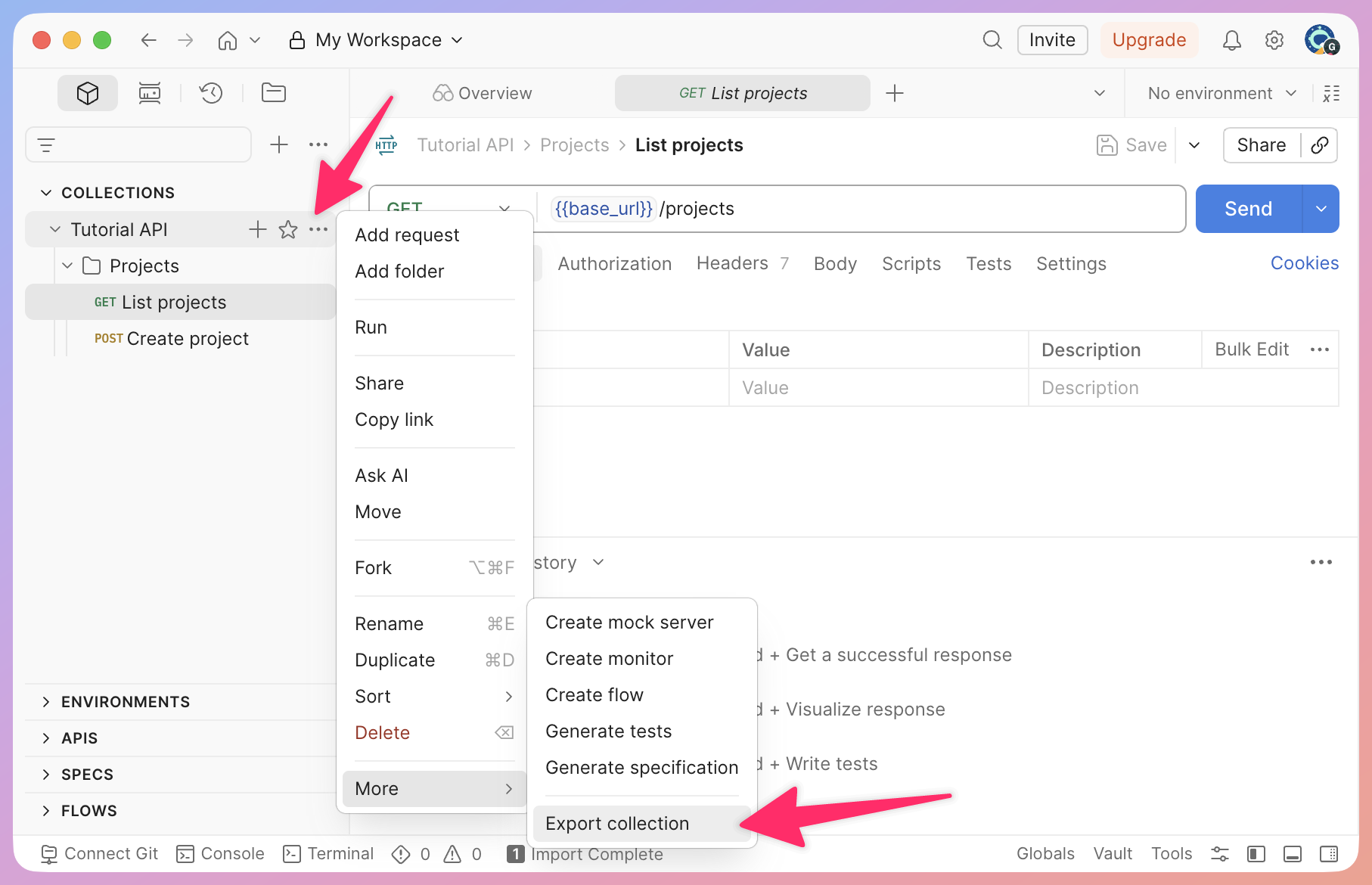
Find Export collection under More in the collection menu.
2. Save the collection
Click Export JSON and save the file. If your Postman version offers a format choice, choose Collection v2.1.
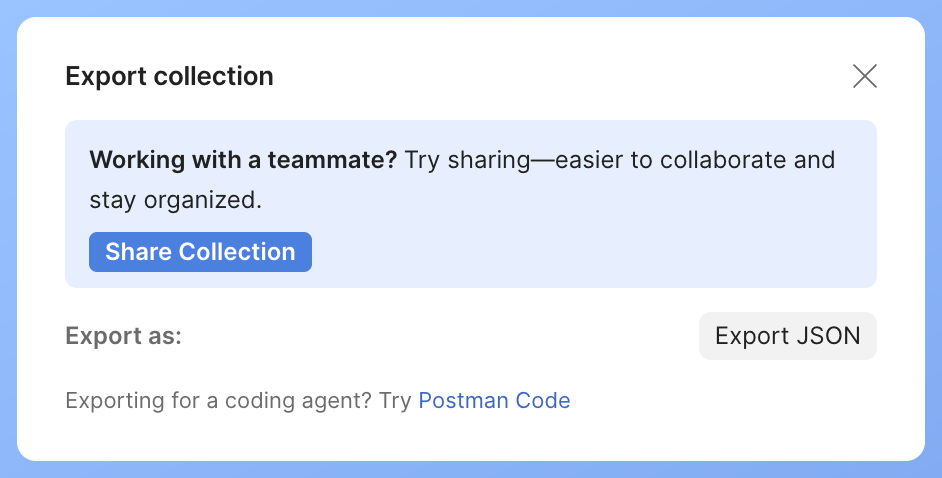
Click Export JSON to save the collection.
3. Export your environments
Under Environments, click … beside an environment, then choose Export.
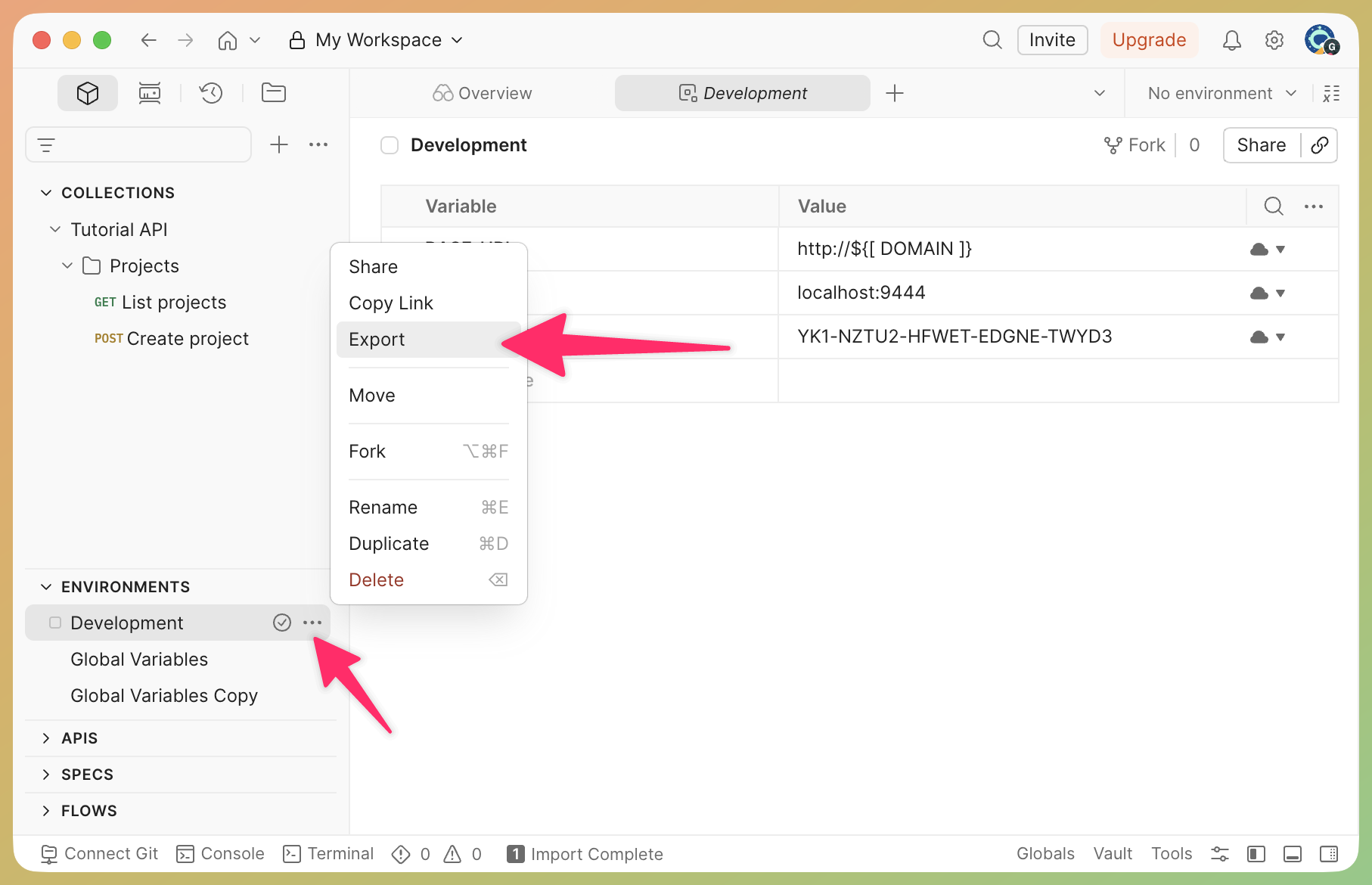
Export each environment your collection uses.
4. Export global variables
If you use global variables, open the Variables pane, select Globals, then Export.
If you’re moving a team, export each collection and environment your team uses. See Postman’s export instructions for bulk export options.
Import into Yaak
Now open Yaak and import your collection file first, followed by any environment files you exported.
Import a sample Postman collection from an empty workspace, then open an imported request. No API requests are sent.
- Open Import Data from Yaak’s main menu.
- Drop your collection JSON on the dialog, choose the file, or enter its file path or URL.
- Choose New Workspace, then Preview Import. Check the detected format and the requests, folders, and variables selected for import.
- Click Apply Changes (the button includes the number of changes), then Done.
- With the imported workspace active, open Import Data again. Choose your environment JSON and Current Workspace, preview it, then apply the changes.
- Select the imported environment in the header. Check your variables and authentication before sending a request.
Template functions let you fetch tokens, generate UUIDs, and more without writing scripts. If you used Postman scripts for these tasks, you can set up template functions after importing. The scripts themselves aren’t imported.
Moving a team
Postman teams sync through Postman’s cloud. In Yaak, you sync through your team’s Git repository.
1. Enable Directory Sync
Only one person needs to import the collections and environments. After importing, enable Directory Sync in Workspace Settings. Choose a folder inside your team’s Git repo.
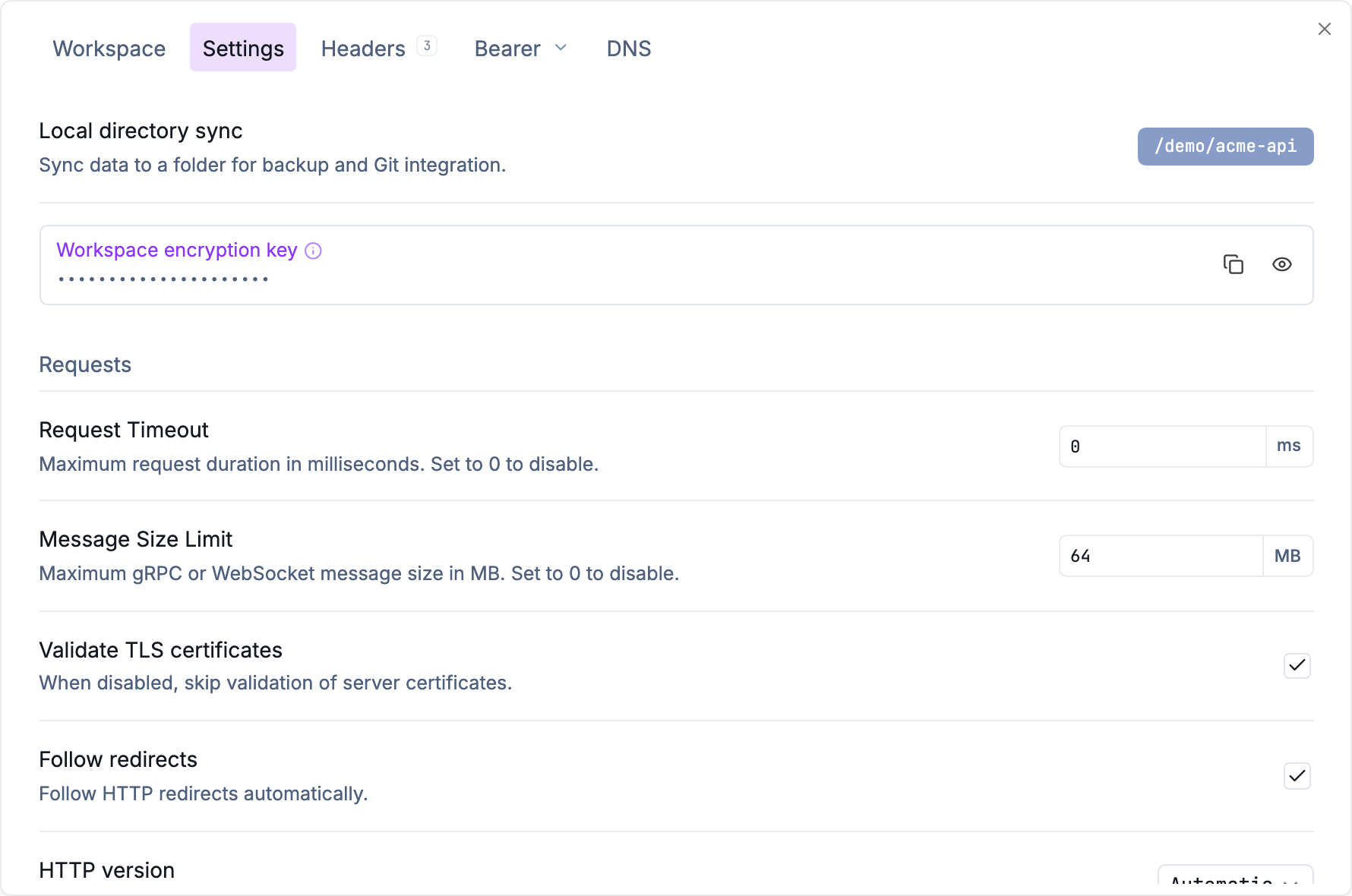
Choose the folder where Yaak will save the workspace files.
2. Enable encryption
Click Enable Encryption in Workspace Settings to encrypt shared secrets. Keep a backup of the workspace key and share it with teammates separately from the repo. See Secrets Encryption for details.

Back up the workspace key so you can recover your encrypted values.
3. Commit and push
Every request, folder, and shared environment becomes a YAML file. Secure values are written encrypted; private environments are never written. Commit these files and push them to your repo.
Review your changes, choose what to include, and commit from Yaak.
4. Invite your teammates
Ask your teammates to clone the repo and open the folder as a workspace, or clone it straight from Yaak. You can review changes through Git commits and pull requests, just like code.
Licenses
Yaak is free for personal use. For work, each person using Yaak needs a license. A Business subscription lets you invite teammates by email and reassign seats from one dashboard. Managing billing doesn’t use a seat unless you also activate a license.
See Team License Management to get your team set up. For invoicing or SSO, contact sales.
Was this helpful?