
SCIM Provisioning
Automatically manage team members from your identity provider
SCIM provisioning lets your identity provider automatically add, update, deactivate, and reactivate members in your Yaak organization.
When SCIM is enabled, your identity provider controls membership lifecycle for assigned users:
- Assigned users are added to your Yaak organization as Members.
- Unassigned or deactivated users are deactivated in Yaak.
- Reassigned users are reactivated in Yaak.
- Profile updates, including name and email changes, are synced to Yaak.
SCIM-managed members are labeled Managed by SCIM in the Yaak dashboard. Their access should be managed from your identity provider, not manually from Yaak.
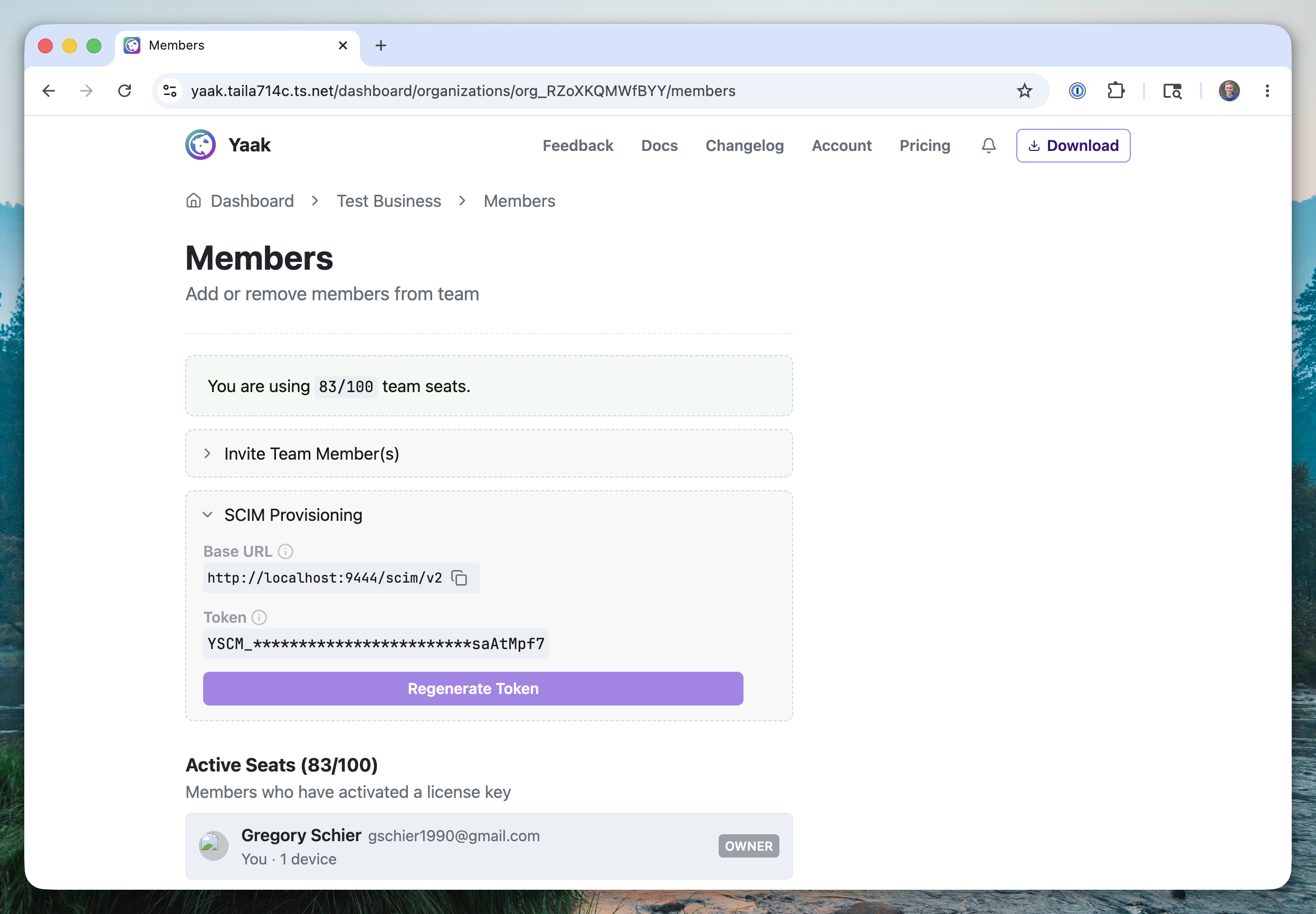
Members page showing the SCIM Provisioning panel with Base URL and token controls.
Before you start
You will need:
- A Yaak organization where you are an Owner or Admin.
- An identity provider that supports SCIM 2.0 provisioning.
- Permission to create or configure an app integration in your identity provider.
Yaak currently provisions all SCIM-created users as Members. Owners and Admins can promote users manually in Yaak after provisioning.
Get the SCIM settings from Yaak
- Open the Yaak Web Dashboard.
- Select your organization.
- Open the Members page.
- Expand SCIM Provisioning.
- Copy the Base URL.
- Generate a bearer token and copy it immediately.
The bearer token is only shown once. If you lose it, regenerate the token and update your identity provider with the new value.
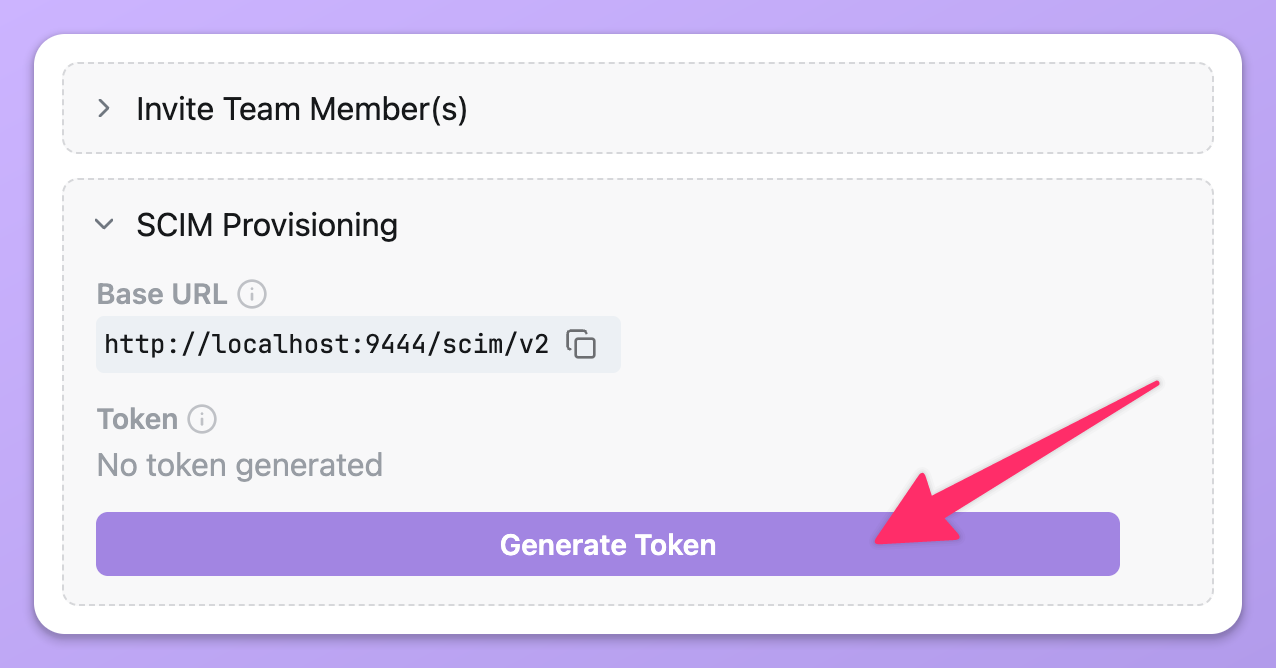
Generate a new token
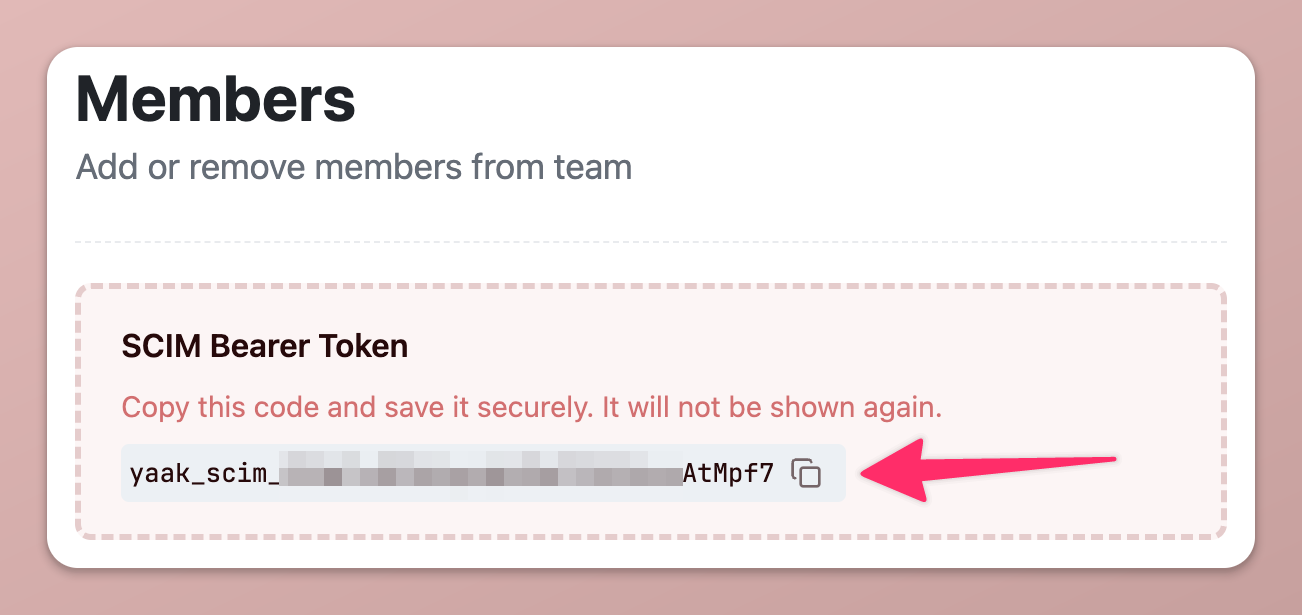
Copy the token
Configure provisioning in your identity provider
Use the values from Yaak when configuring SCIM:
| Field | Value |
|---|---|
| SCIM Base URL | The Base URL shown in Yaak |
| Authentication | Bearer token |
| Bearer token | The token generated in Yaak |
If your identity provider asks which objects or operations to manage, enable:
- Users
- Create users
- Read users
- Update user attributes
- Deactivate users
Groups and password sync are not required.
Okta setup
In Okta, you can test Yaak SCIM provisioning with the SCIM 2.0 Test App (OAuth Bearer Token) integration.
- In Okta Admin, go to Applications.
- Add the SCIM 2.0 Test App (OAuth Bearer Token) app integration.
- Open the app and go to Provisioning.
- Click Configure API Integration.
- Enable API integration.
- Paste the Yaak SCIM Base URL.
- Paste the Yaak bearer token.
- Test the credentials.
Screenshot placeholder: Okta API Integration screen with Base URL and OAuth Bearer Token fields.
After the API credentials test succeeds:
- Open Provisioning to App.
- Click Edit.
- Enable Create Users.
- Enable Update User Attributes.
- Enable Deactivate Users.
- Save the settings.
Screenshot placeholder: Okta Provisioning to App screen with Create Users, Update User Attributes, and Deactivate Users enabled.
Assign users
Yaak only receives SCIM events for users assigned to the identity provider app. To grant Yaak access, assign individual users or a group to the app in your identity provider.
For Okta:
- Open the app’s Assignments tab.
- Click Assign.
- Assign a person or group.
- Confirm the assignment.
Okta will then create or update that user in Yaak.
Screenshot placeholder: Okta app Assignments screen showing a Yaak users group assigned to the app.
Removing users
To remove a SCIM-managed member from Yaak, unassign the user from the app in your identity provider. Yaak will deactivate the member and free their seat.
Do not manually remove SCIM-managed members from the Yaak dashboard. SCIM-managed members are controlled by your identity provider and may be reactivated the next time provisioning syncs.
What Yaak syncs
Yaak syncs the following user fields:
- Name
- Email address
- Active or inactive status
Yaak stores the identity provider’s SCIM user identity so future updates, username changes, email changes, deactivation, and reactivation continue to apply to the same Yaak member.
Troubleshooting
If the credential test fails, check that:
- The Base URL was copied exactly from Yaak.
- The bearer token was copied exactly and has not been regenerated.
- Your Yaak organization still exists and SCIM provisioning is enabled.
- Your identity provider can reach the Yaak Base URL over HTTPS.
If a user is not created in Yaak, check that:
- The user is assigned to the identity provider app.
- Create Users is enabled.
- The user has an email address in the identity provider profile.
- The provisioning logs in your identity provider do not show an error.
If a deactivated user comes back, check whether they are still assigned to the app or assigned through a group.
Was this helpful?